Showing posts with label Deactivate FB. Show all posts

How to Temporarily Deactivate My Facebook Account

This How to Temporarily Deactivate My Facebook Account Guide... let's see how to temporarily remove an FB profile without stress.


There are so many reasons why you may consider shutting down your account but whatever your reason for considering FB account deletion, this post will guide you through.

If you are still do get the above tutorial clear, then follow the steps given below:

  • First login to your Facebook account (Visit www.facebook.com)
  • On the top right hand corner of your Facebook account page, you'll see this "V" shape icon (Contains a drop-down).


  • Click on settings 
  • Under GENERAL,  Click on manage your account.

Manage your account


  • Next page that opens, scroll down and hit on deactivate.

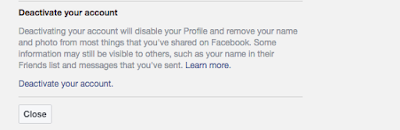
Deactivate Facebook account


NB: Click to Zoom images.

Please share this article with friends and fam!

How to Deactivate Facebook Account Temporarily Step by Step Guide

Want to learn How to Deactivate Your Facebook Account Temporarily Step by Step? You're on the right track because I personally prefer that you deactivate Facebook account temporarily instead of permanently deleting your FB account.


I've come to understand that you should Never Say Never because deleting a Facebook account is like telling Facebook - I'll NEVER return to Facebook till "Thy Kingdom Come" so Facebook, I want you to remove everything concerning my identity from Facebook entirely and don't keep even a back-up copy of my account.

The reverse is DEACTIVATION, when you deactivate your Facebook, you are telling Facebook to remove all your details from Facebook but please keep a copy in case I have a change of mind.
So Facebook will respond and remove your profile and photos and videos and then backup your details for you.

How can you deactivate a Facebook Account?


Let's get started!

To deactivate your FB account, you must make certain that you truly want to deactivate it and ready to miss your friends.
Up next, follow the step by step tips below to temporarily remove your account from the web.

Facebook Account Deactivation Step by Step


You can deactivate your FB account temporarily and choose to come back whenever you want.
To deactivate an account, follow the steps below:
  1. Click the account menu at the top right of any Facebook page
  2. Select Settings
  3. Click General in the left column: https://web.facebook.com/settings?tab=account
  4. Choose Manage your account then follow the steps to confirm

Please share this article!

How to Deactivate My Facebook Account 2018 Guide

Who says you cannot deactivate your Facebook temporarily or better still delete Facebook account permanently? Even though we agree that Facebook is the easiest way to keep in touch with our loved ones, we may be biased by thinking in that direction.


I remember what a friend posted before he deleted his account and I quote "I once had a life until someone asked me to create a Facebook account" - It sounded funny but true.

You hardly keep in touch, no visitation, no hang out, just you and your device. That's that on that so let's see how to deactivate your Facebook account and take a break from this Facebook thing.

Note: When you deactivate your account, you can always reactivate it back and no one will connect with you through out the deactivation period - no one will see your activities, profile and etc.

How to Deactivate Facebook Account temporarily

  • First, you need to log in to your Facebook account by entering your Facebook credentials.
  • Once login, take the cursor of your mouse to the arrow icon facing downward located in the top-right corner of the page and click on it.
  • A drop-down menu will appear where you need to select the “Settings” option.
  • Then, select the Security tab from the left panel of the screen.
  • At the bottom of the page, you’ll find the ‘Deactivate your account’ option. Click on it.
  • After clicking the option, a tab will be extended where you need to click on the blue colour ‘Deactivate your account’ link.
  • A new page will be open, where you need to enter the password.
  • After entering a password, click on the ‘Continue’ button.
  • You’ll be directed to a new page, where you need to tell the reason behind your deactivation.
  • After filling the prompt information, click on the ‘Deactivate’ button for deactivation.
  • Facebook will once again ask you to confirm your decision to deactivate Facebook account. Click on the Deactivate Now button to immediately deactivate Facebook account.